My Goal
In this entry, I’ll improve our basic image generator using two prompt techniques.
- Prompt chaining
- Prompt presets
For clarity, I will refer to user’s initial input as “user prompt”, text-to-text input prompt as “text prompt” and text-to-image input prompt as “image prompt”.
My Process
1. Generating dynamic prompts with text model
Text-to-text generation works by taking a set of text as input and produces another set of text as output. This is a good way to generate new image prompts or to enhance your existing ones.
Usually, the model defaults to a “helpful assistant” role and responds to you in a conversational manner. To ensure it responds only with prompts, you need to specify the expected output clearly. It’s also a good idea to mention best practices to get better results.
Here are some prompts to try. Regenerate to get different outputs:
- Generate random image prompt. Incorporate best practices. Respond only with image prompt
- Enhance this image prompt ‘a chimpanzee in sunglasses giving thumbs up’. Random action and setting. Respond only with image prompt
- Generate image prompt related to random action movie. Incorporate best practices. Respond only with image prompt
FYI
You’ll sometimes get output like “—v 5 4:3” or “(glowing:1.5)” that are specific to Midjourney or Stable Diffusion models.
Either regenerate or improve your prompt to exclude these model prompts.
Your generated text will appear here.
2. Prompt chaining with text and image models
Prompt chaining refers to the technique of taking the output of one prompt as input for the subsequent prompt. There are various reasons to use prompt chaining - in our case, it is to enable a multi-tool workflow.
Recall our basic image generator. Let’s apply prompt chaining so that output generated by our text model is submitted as the input for our image model.
FYI
You may get the same image with similar prompts. This is due to caching by Pollinations.AI image API.
Your generated image will appear here.
3. Making it your own with prompt presets
We’ve learned that generated images are dependent on image prompts, which in turn can be generated using text prompts. You can store text prompt as presets and package them into new features, which increases the value and utility of your applications.
Prompt presets, also known as prompt templates do the following:
- Discoverability: Expose users to the full potential of a model by providing examples of what it can do. A preset can show them what is possible.
- Consistency: Ensure a model receives the same type of input for similar tasks, leading to more predictable and consistent outputs.
- Efficiency: Save time by eliminating the need to write complex prompts from scratch. A user can simply select a preset and fill in the blanks.
- Quality Control: Presets contain the best combination of keywords and instructions to get high-quality results. This lowers the barrier to entry for novice users.
Let’s apply them to our earlier Level 2 app.
FYI
You’ll notice that words inside images often don’t turn out well. This is dependent on the image model (we’re using Flux)
Your generated image will appear here.
Results
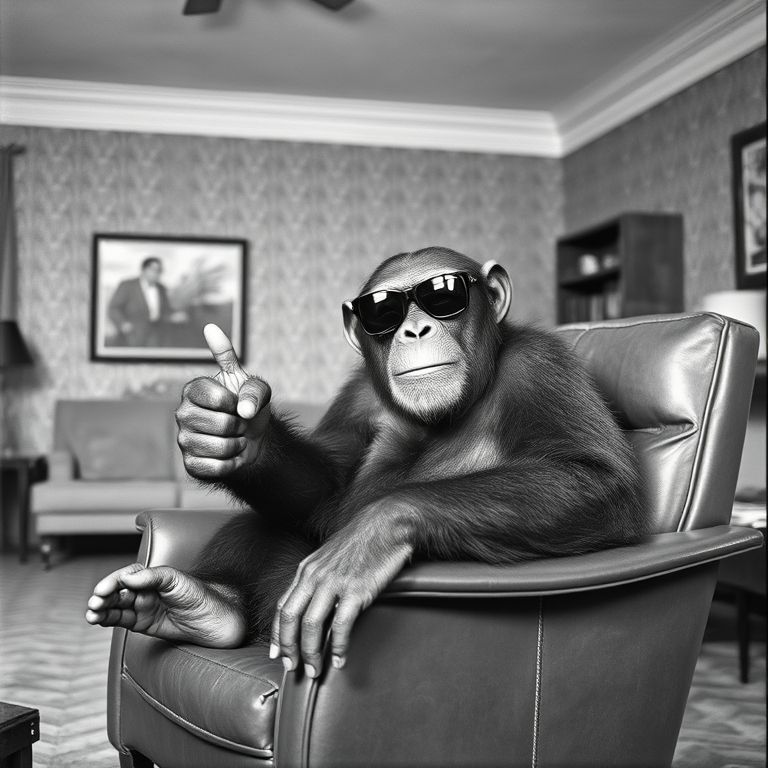
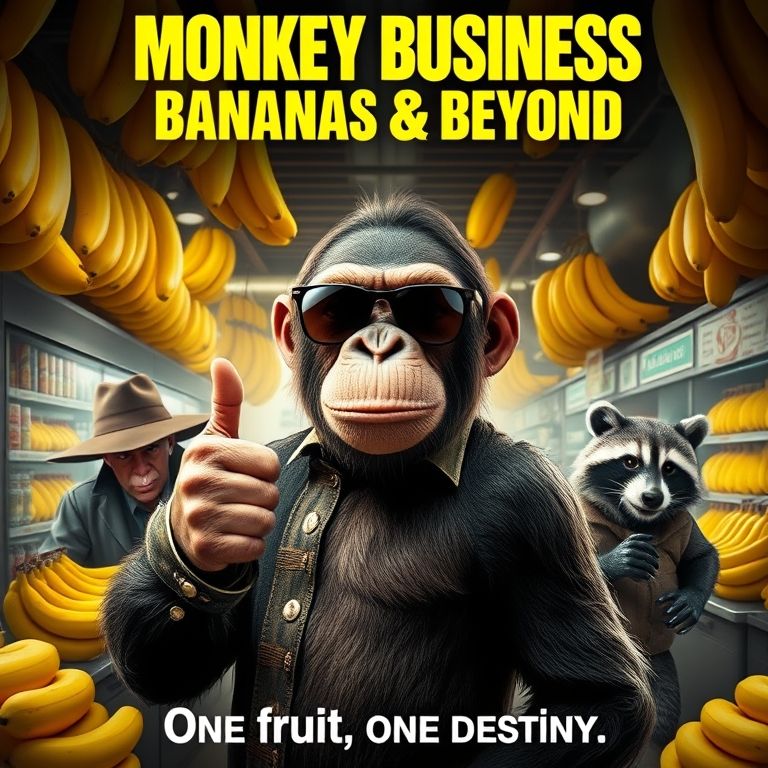
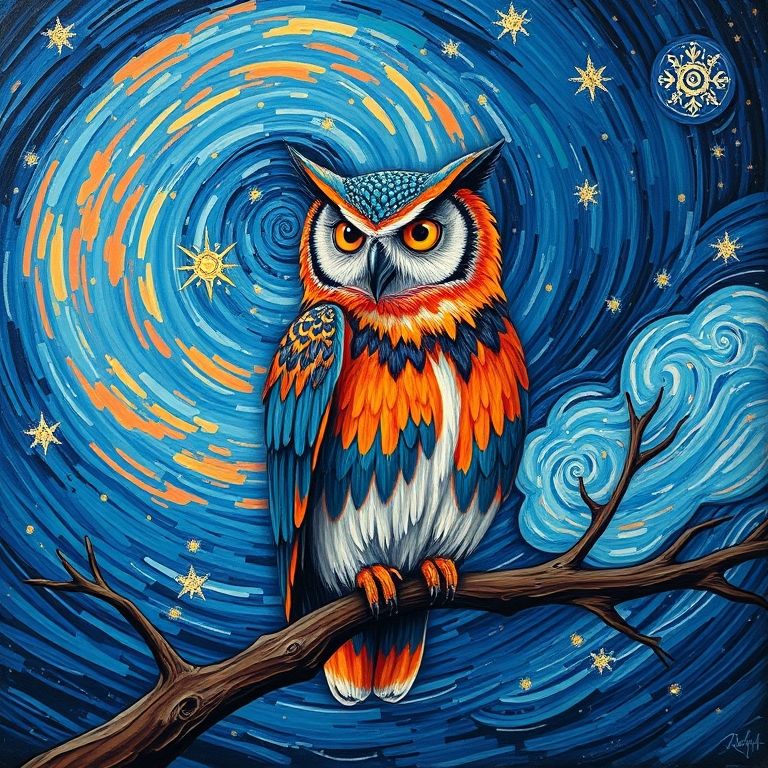
Here are some sample images generated by our application. I think they’re pretty good :)

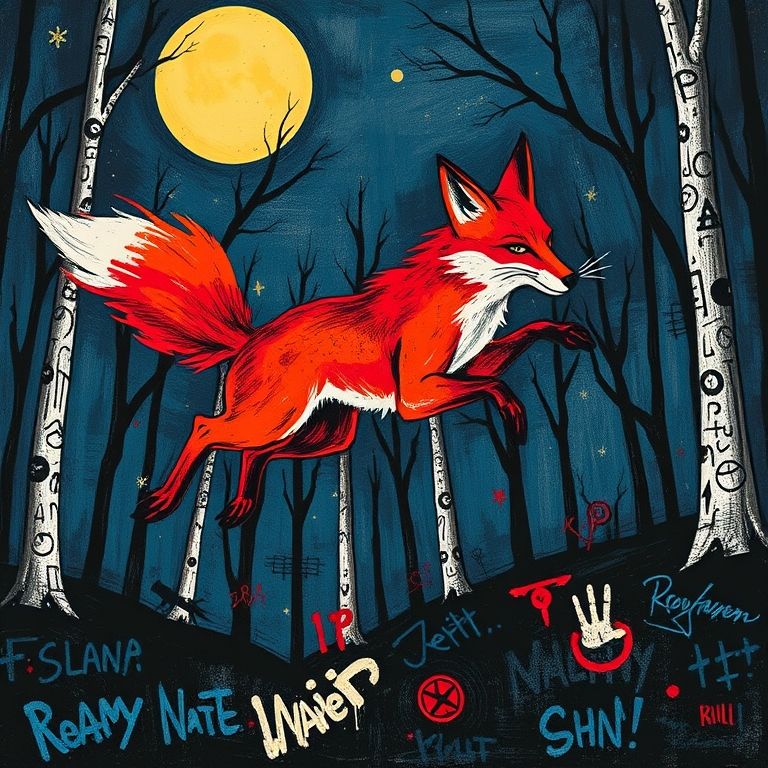
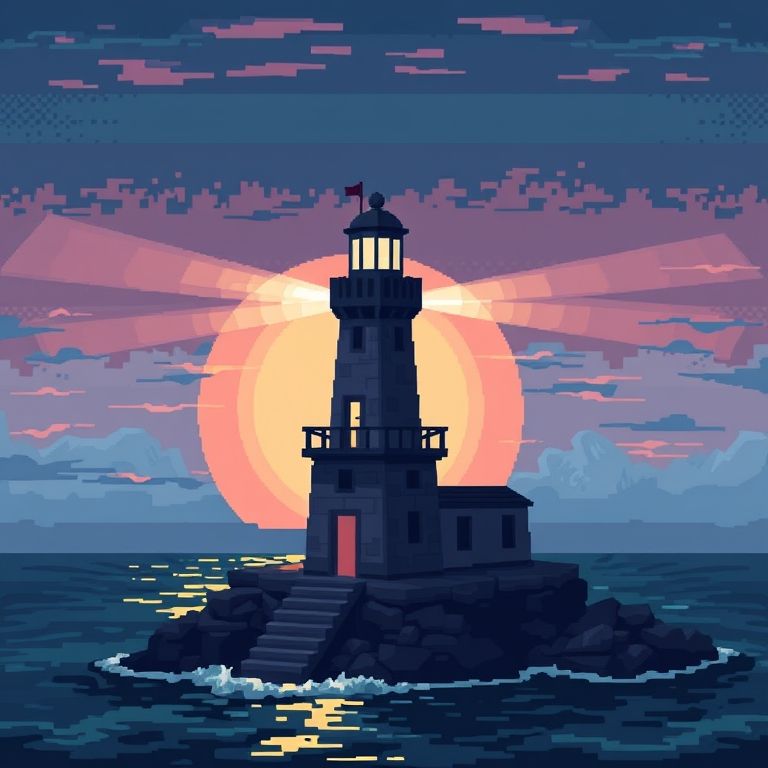
Future Potential
What you’ve learned here can be applied to any visual related application; though picking the right one requires a good understanding of the strengths and weaknesses of image models around specific styles or prompts.
As image generators have become pretty common, it’s better to build your unique implementation around a narrow use case and do it well.
Here are some ideas,
- Generate comic strips with text layer added separately
- Convert text novels into graphic novels, though character consistency would be a challenge
- Inspiration for game image or character assets
- Stock images for niche areas
- Plugin for other apps to generate avatar image
My Setup
API Request
As with the image API, we’re using Pollinations.AI for the text via GET requests Text-to-Text GET API
GET https://gen.pollinations.ai/text/{prompt}| Parameter | Required | Description | Options | Default |
|---|---|---|---|---|
prompt | Yes | Text prompt for the AI. | Should be URL-encoded. | |
model | No | Model for generation. See Available Text Models. | openai, mistral, etc. | openai |
seed | No | Seed for reproducible results. | ||
temperature | No Controls randomness in output. Higher values make output more random. | 0.0 to 3.0 | ||
json | No | Set to true to receive the response formatted as a JSON string. | true / false | false |
system | No | System prompt to guide AI behavior. Should be URL-encoded. | ||
stream | No | Set to true for streaming responses via Server-Sent Events (SSE). Handle data: chunks. | true / false | false |
Prompt chaining and presets
These are the core of our improved app. We know that by crafting image prompts in a certain way, we can produce distinct image outputs. A good way to do so is to chain it with text models that transforms users’ initial input towards a specific direction then save it as a preset. Through presets, users can generate great results without learning prompt engineering.
Points to recap:
- Text models defaults to a “helpful assistant” role. It’s best specify the expected output clearly; e.g.
Respond only with image prompt - Try
Incorporate best practicesin your prompts to generate expert level output
Here are the prompts used for each preset
| Preset | Prompt template |
|---|---|
| Movie Poster | Transform this image prompt `$userPrompt` into a movie poster from a random movie. Include the movie title and characters. Respond only with image prompt |
| Comic | Transform the following image prompt into a black and white comic frame: `$userPrompt`. Random action and joke in text bubble. Respond only with image prompt |
| Pixels | Transform the following image prompt into pixel art inside video game, limit to 4-bit colors: `$userPrompt`. Respond only with image prompt |
| Photograph | Transform this image prompt `$userPrompt` into a photograph from random era. Include suitable settings with badly worned photo condition. Respond only with image prompt |
| Graffiti | Transform the following image prompt into a graffiti on a random building: `$userPrompt`. Incorporate common graffiti elements. Respond only with image prompt |
| Chimps only | Change the subject in this image prompt to a chimpanzee `$userPrompt`. Respond only with image prompt |
| Enhanced | Enhance this image prompt `$userPrompt`. Random action and setting. Respond only with image prompt |
| Random (replaces user prompt) | Generate a short image prompt about a random subject with random characteristic or action, limit to 8 words and below. Respond only with image prompt |
Working code
Save the below code into a HTML file and run directly from your web browser.
<!DOCTYPE html>
<html lang="en">
<head>
    <meta charset="UTF-8">
    <meta name="viewport" content="width=device-width, initial-scale=1.0">
    <title>AI Image Generator with Presets</title>
    <!-- Load Tailwind CSS via CDN -->
    <script src="https://cdn.tailwindcss.com"></script>
    <!-- Load Axios for easier HTTP requests -->
    <script src="https://cdn.jsdelivr.net/npm/axios/dist/axios.min.js"></script>
    <style>
        /* Custom styles for the loading spinner */
        .spinner {
            border-top-color: #3b82f6; /* Blue-500 */
            border-right-color: #3b82f6;
            border-bottom-color: #3b82f6;
            border-left-color: transparent;
        }
    </style>
</head>

<body class="flex justify-center items-center p-4 min-h-screen">

<!-- MAIN APP CONTAINER - Using a simple, descriptive ID -->
<div id="ai-image-generator-app" class="w-full max-w-4xl">
    <main class="w-full mb-8 overflow-hidden bg-gray-50 border border-gray-200 rounded-lg shadow-xl">
        <div class="px-4 py-3 text-left text-gray-700 font-bold bg-gray-100 border-b border-gray-200 rounded-t-lg">
            AI Image Generator v2
        </div>

        <!-- Layout Container -->
        <div class="p-4 flex flex-col lg:flex-row space-y-4 lg:space-y-0 lg:space-x-4">

            <!-- Left Column: Input and Prompts -->
            <div class="flex flex-col lg:w-1/2">
                <div class="flex justify-between items-center mb-3">
                    <label for="promptInput" class="text-gray-800 font-semibold">Enter your prompt:</label>
                    <a id="randomPromptLink" href="#" class="text-blue-600 hover:text-blue-800 hover:underline transition duration-150 text-sm font-medium">Random Prompt</a>
                </div>
                <textarea id="promptInput" placeholder="Enter your prompt here..." class="h-32 p-3 border rounded-lg border-gray-300 bg-white text-gray-800 focus:outline-none focus:ring-2 focus:ring-blue-500 resize-none transition duration-150">Chimpanzee in sunglasses</textarea>

                <!-- Preset Dropdown Container -->
                <div id="presetDropdownContainer" class="mt-4 hidden">
                    <label for="presetDropdown" class="text-gray-800 font-semibold mb-2 block">Prompt preset:</label>
                    <select id="presetDropdown" class="w-full p-3 border border-gray-300 bg-white text-gray-700 focus:outline-none focus:ring-2 focus:ring-blue-500 shadow-md">
                        <!-- Options will be populated by JavaScript -->
                    </select>
                </div>

                <!-- Final Prompt Output -->
                <label for="finalPromptOutput" class="text-gray-800 font-semibold mt-4 mb-2">🤖 AI Text (Final Prompt)</label>
                <div id="finalPromptOutput" class="h-32 p-3 border border-gray-300 bg-gray-100 text-gray-800 overflow-y-auto whitespace-pre-wrap rounded-lg"></div>

                <button id="generateButton" class="mt-4 bg-blue-600 text-white font-bold py-3 px-6 rounded-lg hover:bg-blue-700 transition duration-300 ease-in-out shadow-lg transform hover:scale-[1.01] active:scale-[0.99] disabled:bg-gray-400">
                    Generate Content
                </button>
            </div>

            <!-- Right Column: Image Output -->
            <div class="lg:w-1/2">
                <div class="flex items-center text-gray-800 font-semibold mb-3">
                    <span class="mr-2">🖼️</span> AI Image
                </div>
                <div id="imageContainer" class="flex justify-center items-center h-96 border border-gray-300 bg-gray-200 text-gray-500 overflow-hidden relative rounded-lg shadow-lg p-4">
                    <p id="imagePlaceholder" class="text-center transition duration-300">Your generated image will appear here.</p>

                    <img id="generatedImage" class="hidden w-full h-full object-contain" src="#" alt="Generated AI Image" />

                    <div id="loadingSpinner" class="hidden absolute top-1/2 left-1/2 -translate-x-1/2 -translate-y-1/2">
                        <div class="spinner animate-spin rounded-full h-16 w-16 border-4"></div>
                    </div>
                </div>
            </div>
        </div>

        <div class="px-4 py-2 text-sm text-right text-gray-400 bg-gray-50">
            Free API provided by <a href="https://pollinations.ai/" target="_blank" class="text-blue-500 hover:underline">pollinations.ai</a>. If you experience errors, try different prompts or try again later.
        </div>
    </main>
</div>

<script>
document.addEventListener('DOMContentLoaded', () => {

    const id = "ai-image-generator-app";
    const prompt = "Chimpanzee in sunglasses"; // Initial prompt value
    const promptPresets = {
        "Movie Poster": "Transform this image prompt `$userPrompt` into a movie poster from a random movie. Include the movie title and characters. Respond only with image prompt.",
        "Comic": "Transform the following image prompt into a black and white comic frame: `$userPrompt`. Random action and joke in text bubble. Respond only with image prompt",
        "Pixels": "Transform the following image prompt into pixel art inside video game, limit to 4-bit colors: `$userPrompt`. Respond only with image prompt",
        "Photograph": "Transform this image prompt `$userPrompt` into a photograph from random era. Include suitable settings with badly worned photo condition. Respond only with image prompt.",
        "Graffiti": "Transform the following image prompt into a graffiti on a random building: `$userPrompt`. Incorporate common graffiti elements. Respond only with image prompt",
        "Chimps only": "Change the subject in this image prompt to a chimpanzee `$userPrompt`. Respond only with image prompt",
        "Enhanced": "Enhance this image prompt `$userPrompt`. Random action and setting. Respond only with image prompt"
    };
    // ----------------------------------------------

    // Get the container element using the fixed `id`
    const container = document.getElementById(id);
    if (!container) {
        console.error('Component container not found. Check if the main container ID is correct.');
        return;
    }

    const generateButton = container.querySelector('#generateButton');
    const promptInput = container.querySelector('#promptInput');
    const finalPromptOutput = container.querySelector('#finalPromptOutput');
    const generatedImage = container.querySelector('#generatedImage');
    const imagePlaceholder = container.querySelector('#imagePlaceholder');
    const loadingSpinner = container.querySelector('#loadingSpinner');
    const presetDropdownContainer = container.querySelector('#presetDropdownContainer');
    const presetDropdown = container.querySelector('#presetDropdown');
    const randomPromptLink = container.querySelector('#randomPromptLink');

    // Populate the dropdown with presets
    if (Object.keys(promptPresets).length > 0 && presetDropdown) {
        // Add a default "None" option first
        const noneOption = document.createElement('option');
        noneOption.value = "";
        noneOption.textContent = "None";
        presetDropdown.appendChild(noneOption);

        // Add preset options
        for (const [key, value] of Object.entries(promptPresets)) {
            const option = document.createElement('option');
            option.value = value;
            option.textContent = key;
            presetDropdown.appendChild(option);
        }

        presetDropdownContainer.classList.remove('hidden');
    } else if (presetDropdownContainer) {
        presetDropdownContainer.classList.add('hidden');
    }

    // Function to handle the two-step generation process
    const generateContent = async () => {
        const userPrompt = promptInput.value.trim();
        if (!userPrompt) {
            promptInput.focus();
            return;
        }

        // Disable button to prevent double-click
        generateButton.disabled = true;

        // Hide previous results and show loading spinner
        generatedImage.src = '#'; // Clear previous image source
        imagePlaceholder.classList.add('hidden');
        generatedImage.classList.add('hidden');
        loadingSpinner.classList.remove('hidden');
        finalPromptOutput.textContent = 'Processing prompt...'; // Initial text display

        try {
            const selectedPresetTemplate = presetDropdown.value;
            let finalImagePrompt = userPrompt;

            // STEP 1: Text generation (if a preset is selected)
            if (selectedPresetTemplate) {
                finalPromptOutput.textContent = 'Generating enhanced prompt using AI...';
                const promptForTextAPI = selectedPresetTemplate.replace('$userPrompt', userPrompt);
                const textUrl = `https://gen.pollinations.ai/text/${encodeURIComponent(promptForTextAPI)}?_=${Date.now()}&key=${POLLINATIONS_API_KEY}`;

                const textResponse = await axios.get(textUrl);
                const generatedText = textResponse.data.trim();

                // Display the generated text
                finalPromptOutput.textContent = generatedText;

                // Set the final prompt for the image
                finalImagePrompt = generatedText;
            } else {
                // Skip text generation and use the user's prompt directly
                finalPromptOutput.textContent = userPrompt;
            }

            // STEP 2: Image generation
            const imageUrl = `https://gen.pollinations.ai/image/${encodeURIComponent(finalImagePrompt)}?_=${Date.now()}&key=${POLLINATIONS_API_KEY}`;

            // Create a temporary image element to handle loading state safely
            const tempImage = new Image();
            tempImage.onload = () => {
                generatedImage.src = imageUrl; // Set source only after loading succeeds
                loadingSpinner.classList.add('hidden');
                generatedImage.classList.remove('hidden');
                generateButton.disabled = false;
            };

            tempImage.onerror = () => {
                loadingSpinner.classList.add('hidden');
                imagePlaceholder.textContent = 'Failed to load generated image. Try changing the prompt.';
                imagePlaceholder.classList.remove('hidden');
                finalPromptOutput.textContent = finalImagePrompt + '\n\nError: Image generation failed.';
                generateButton.disabled = false;
            };

            // Start loading the image
            tempImage.src = imageUrl;

        } catch (error) {
            console.error('Error fetching data:', error);
            loadingSpinner.classList.add('hidden');
            imagePlaceholder.textContent = 'Failed to communicate with the API. Please try again.';
            imagePlaceholder.classList.remove('hidden');
            finalPromptOutput.textContent = userPrompt + '\n\nError: API call failed.';
            generateButton.disabled = false;
        }
    };

    // Function to handle generating a random prompt
    const generateRandomPrompt = async () => {
        // Disable the link and show a loading state
        randomPromptLink.textContent = 'Loading...';
        randomPromptLink.classList.add('pointer-events-none');

        try {
            const promptForTextAPI = "Generate a short image prompt about a random subject with random characteristic or action, limit to 8 words and below. Respond only with image prompt";
            const textUrl = `https://gen.pollinations.ai/text/${encodeURIComponent(promptForTextAPI)}?_=${Date.now()}&key=${POLLINATIONS_API_KEY}`;
            const textResponse = await axios.get(textUrl);

            // Update the textarea with the new prompt
            promptInput.value = textResponse.data.trim();

            // Clear the aiText container from previous generations
            finalPromptOutput.textContent = '';

        } catch (error) {
            console.error('Error generating random prompt:', error);
            // On error, revert the text and re-enable
            promptInput.value = 'Failed to generate random prompt.';
        } finally {
            // Revert the link text and enable it
            randomPromptLink.textContent = 'Random Prompt';
            randomPromptLink.classList.remove('pointer-events-none');
        }
    };

    // Add event listeners
    if (generateButton && promptInput && randomPromptLink) {
        // Click event for the main generate button
        generateButton.addEventListener('click', generateContent);

        // Click event for the random prompt link
        randomPromptLink.addEventListener('click', (e) => {
            e.preventDefault();
            generateRandomPrompt();
        });

        // Keydown event for the input field to trigger on "Enter"
        promptInput.addEventListener('keydown', (event) => {
            if (event.key === 'Enter' && !event.shiftKey) {
                event.preventDefault(); // Prevent the default form submission behavior
                generateContent();
            }
        });
    }
});
</script>

</body>
</html>